Client-Wise Revenue and Receivables Tracker in Excel: Free Template and How to Use It

A free Excel template that turns your invoice list into client-wise revenue, collections, outstanding and ageing, with flags for slow payers and client concentration.
Most agencies and consultants know their total monthly billing. Far fewer can say, in under a minute, how much a particular client has been billed this year, how much of it has actually come in, and which invoices are now sitting past 60 days.
That gap is usually not a software problem. It is a "the data lives in five places" problem. This template fixes it with one invoice log and a few formulas, and you can set it up in about 20 minutes.
What the template contains
The workbook has four sheets. You only type into one of them.
- How to Use: a short instruction sheet. Read it once, then ignore it.
- Invoice Log: the only sheet you type into. Room for 300 invoices.
- Client Summary: one row per client (up to 25). Revenue, collected, outstanding and flags are calculated for you.
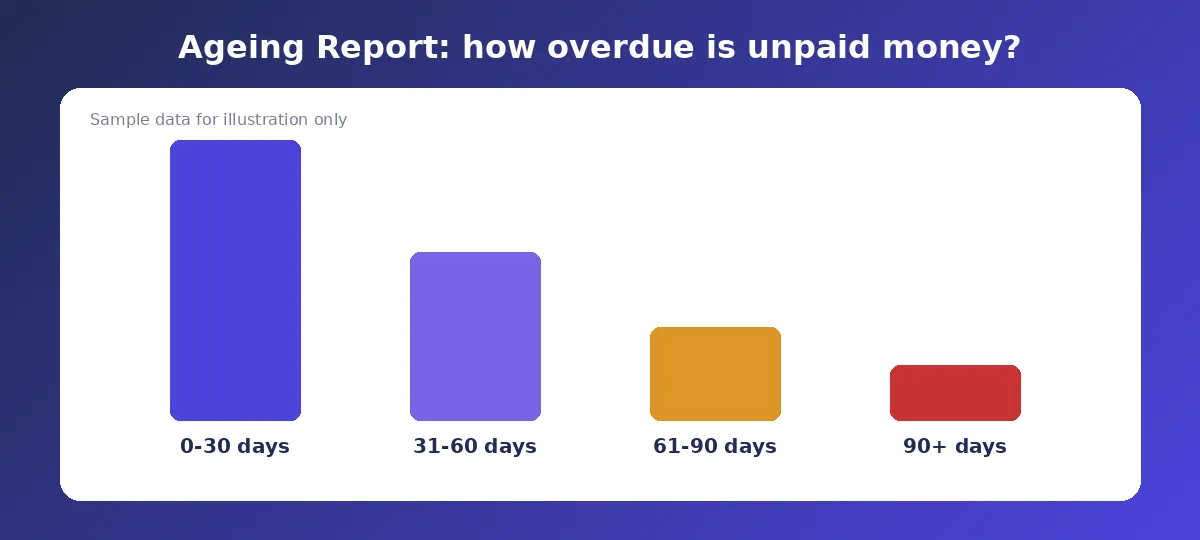
- Ageing Report: unpaid invoices grouped by how overdue they are.
How to set it up
- Download the file and delete the 8 sample invoices and 4 sample client codes. They are only there so you can see how it behaves.
- Decide a short code for every client (for example ACME, BLUE, NOVA). Use the same code every time. "Acme", "ACME Ltd" and "Acme Pvt" will be treated as three different clients.
- Enter your invoices in the Invoice Log: date, invoice number, client code, amount ex-GST, GST, and amount collected so far.
- Add your client codes to the Client Summary sheet.
- Open the Ageing Report and look at anything old.
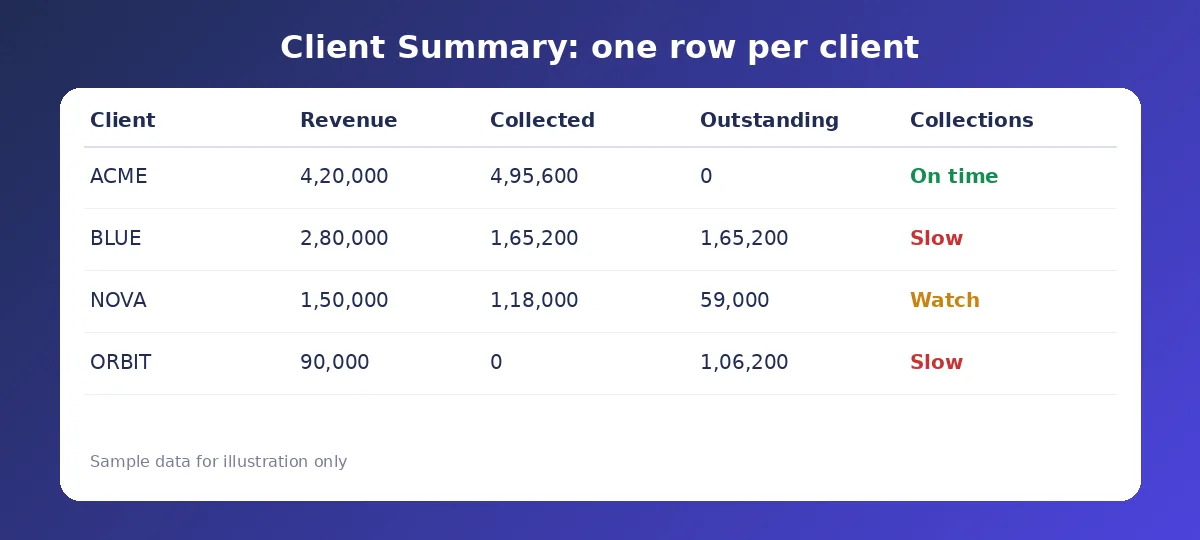
Reading the Client Summary
Each client row shows what you billed, what you collected and what is still pending. Two flags sit beside it, and they are the most useful part.
Rebuild with the Table button, 3 columns:
| Column | What it tells you | What to do with it |
| Outstanding | Money billed but not yet received | Chase the largest ones first |
| Collections flag | Whether a client is paying slowly | Call before sending new work |
| Concentration flag | Share of total revenue from one client | Watch it if one name gets too big |
Using the Ageing Report
Ageing simply groups unpaid invoices by how long they have been overdue. Typical buckets are 0 to 30, 31 to 60, 61 to 90 and over 90 days. The older the bucket, the lower the odds of getting paid without a real conversation.
A small invoice that is 90 days old is a nuisance. A large one is a cash flow problem. Look at the amount and the age together, not either one alone.
Watching client concentration
If one client gives you a big share of your revenue, losing them hurts badly, and their late payments hurt your cash more than anyone else's. The template flags clients above a threshold so you notice early.
What a spreadsheet can't do
This template is honest, simple and free, but it has limits. Someone has to enter every invoice, so numbers go stale the moment you get busy. Partial payments need manual updates. There is no link to your bank, your Tally books or your GST filings. And it tells you about revenue and receivables, not about whether a client is actually profitable.
If you outgrow it, tools like MoneyGence sit on top of Tally or Zoho and show client-wise revenue, receivables and cash position without retyping anything. It does not calculate client profitability today, so keep any cost tracking in your own sheet for now.
Common Mistakes
- Using different spellings of the same client name, which splits one client into several rows.
- Mixing ex-GST and incl-GST amounts in the same column.
- Updating collections once a month instead of when the payment lands.
- Deleting old invoices to "clean up". Keep them, they are your history.
- Overwriting the formula cells in the Client Summary.
- Treating the concentration flag as a verdict rather than a prompt to look closer.
Frequently Asked Questions
Is the template really free?
Yes. Download it, edit it and use it for your own business. There is no sign-up needed to open the file.
How many clients and invoices can it handle?
Up to 25 clients and 300 invoices. If you need more, copy the formulas down to extra rows, or move to a tool built for it.
Does it work in Google Sheets?
It should open in Google Sheets, but test your own copy first, since some formatting and flags can behave differently there.
Should revenue include GST?
Track revenue ex-GST, because GST is not your income. Track collected and outstanding incl. GST, because that is what the client pays.
How often should I update it?
Add each invoice when you raise it, and update collections when money arrives. A weekly review of the Client Summary is enough.
Official references
Need help staying Finance Templates compliant?
MoneyGence's AI Finance OS tracks your compliance, wallet share, and finances in one place, built for agencies and growing businesses.
Get started with MoneyGence