Purchase Order Template Excel - Free Downloadable PO Form
A clear, well-structured purchase order (PO) template in Excel saves time, reduces misunderstandings with suppliers, and creates an auditable trail for procurement and accounting. In this guide you will learn what to include in a practical PO template, how to structure it in Excel for accuracy and repeatability, and best-practice tips for validating and distributing POs. Whether you’re a small buyer creating your first template or a procurement professional standardising processes across teams, this guide explains the rationale behind each section so you can design a template that fits your business workflow and compliance needs. You will also get step-by-step guidance on setting up common Excel features, tables, dropdowns, formulas and print-ready layouts, so your PO can be reused and easily integrated with accounting systems. Finally, the guide highlights key data points to validate before sending a PO and points out why including tax identifiers matters for reconciliation and record-keeping.
What is a Purchase Order and why it matters
A purchase order is a formal document issued by a buyer to a seller that communicates the buyer’s intent to purchase goods or services. It functions as both an instruction to supply and as an agreement framework that defines what is expected from both parties. For businesses, a PO establishes clarity on items, quantities, pricing expectations and delivery instructions, reducing disputes and simplifying accounts payable workflows.
Well-designed PO templates enforce consistency across procurement activities, speed up approvals, and provide a reliable audit trail. Consistent POs make it easier to match invoices to orders, track outstanding deliveries, and generate internal management reports. Using Excel for a PO template is practical for many organisations because it balances flexibility with structure, allowing customisation and straightforward export to accounting systems.
Key components to include in the template
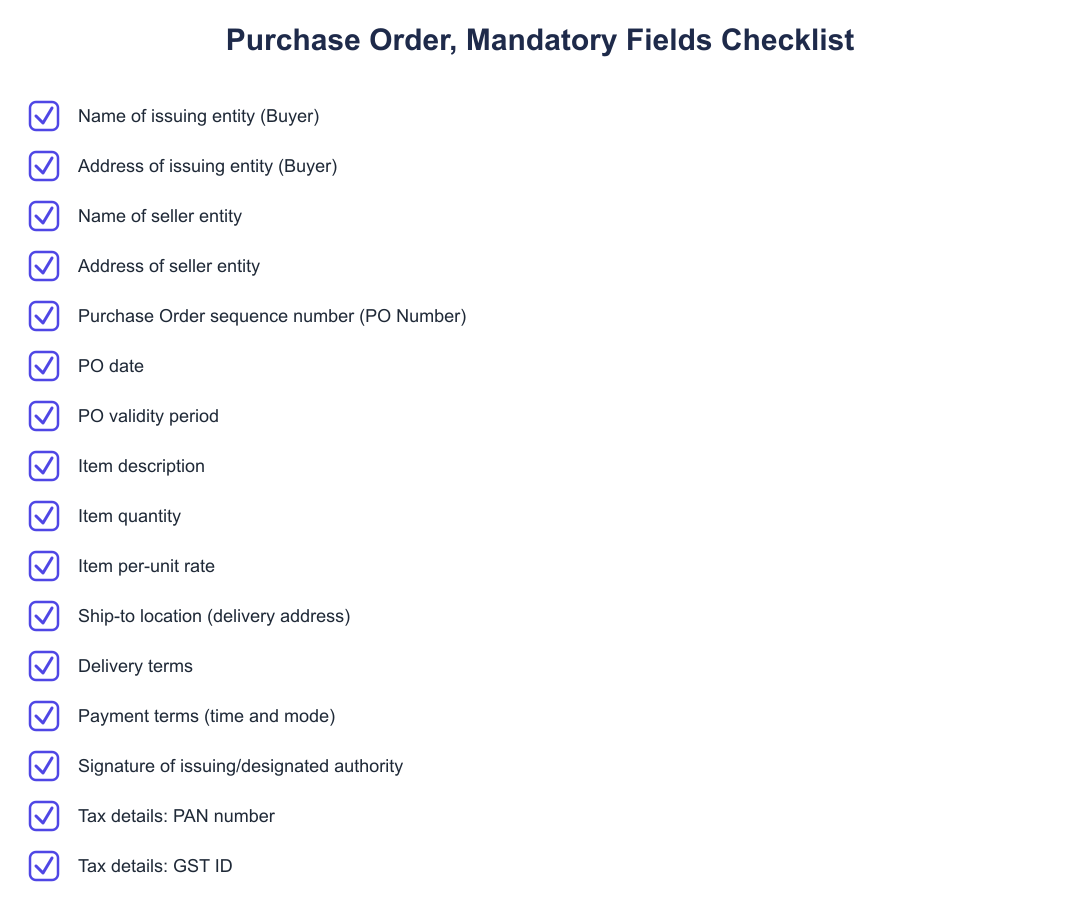
Your template should group information logically: buyer details, seller details, order specifics (items, quantities and rates), delivery instructions, payment terms and footer information for signatures and notes. Grouping fields makes the document easy to scan and helps ensure the sender and receiver can quickly verify the most important elements.
One particular data element to include is tax identifiers: purchase orders commonly specify Tax Details such as PAN Number and GSTIN (GSTID). Including such identifiers on the PO helps with later reconciliation and ensures tax-related information is captured early in the procurement lifecycle.
Design the template so optional fields are clearly marked and required fields are emphasised. Use consistent labelling and short helper text where needed so that anyone in the organisation can fill the PO correctly without having to chase clarifications.
Excel layout and features to use
Build the PO as an Excel table for the line items area to benefit from built-in filtering, structured references and easy row insertion. Tables make it simple to apply subtotal formulas and ensure that added rows adopt the same formatting and formulas automatically.
Use data validation dropdowns for repeated fields such as item codes, tax rates (if your organisation uses fixed categories) and delivery locations. Conditional formatting can highlight missing required values or expiries, while named ranges keep formulas readable. Keep a dedicated header section for buyer and seller contact information so it prints at the top of the page.
Create a print layout (landscape or portrait as needed) with clear margins and a footer for page numbers and revision/version details. Lock or protect cells that contain formulas and static reference data to avoid accidental changes once the template is approved.
Step-by-step: build a simple PO template in Excel
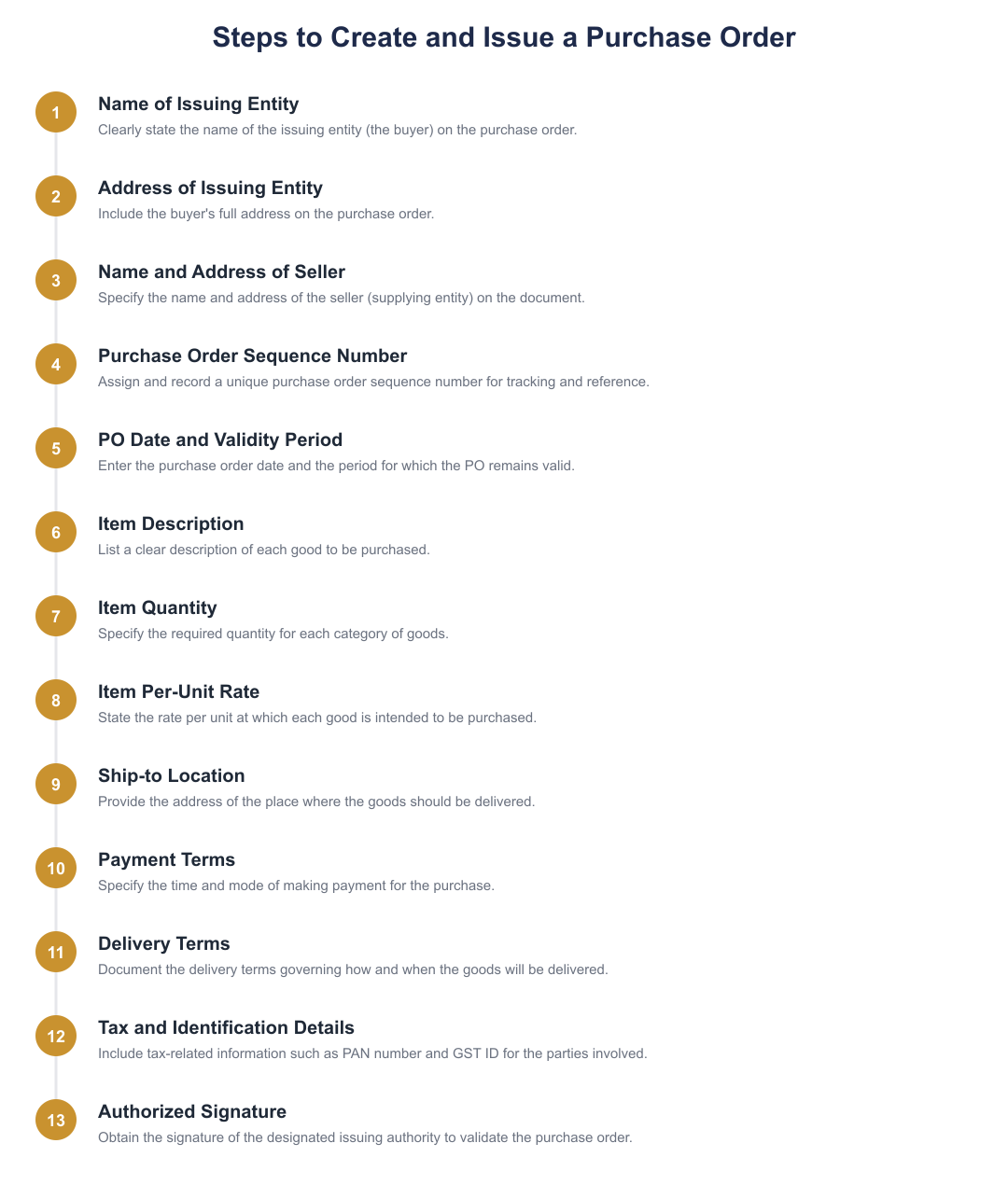
Reserve space at the top for buyer and seller details, PO number and PO date so these print prominently and can be referenced easily.
Insert an Excel table with columns for item description, quantity, unit rate and amount; use formulas to calculate line totals and a summary total row.
Add clear fields for delivery address, expected delivery date and payment terms so both parties understand obligations and timelines.
Include dedicated fields for tax-related identifiers; as a best practice, capture Tax Details such as PAN Number and GSTIN (GSTID) to facilitate reconciliation.
Protect cells that contain formulas and locked reference data, then test by creating a sample PO to verify calculations and printing.
Validation and operational tips
Before issuing a PO, verify critical fields such as buyer/seller names, contact details, delivery location and total amounts. Establish an internal approval workflow so POs above set thresholds or for specific vendors follow an authorised sign-off route.
Keep version control and a revision history for the template itself. When a supplier questions a PO, having a consistent template and clear field labels makes it easier to resolve discrepancies quickly and maintain auditability.
A clean, well-tested PO template in Excel reduces errors, accelerates procurement cycles and supports reliable accounting. By grouping information logically, using Excel’s structural features and capturing key identifiers such as PAN and GSTIN, you create a document that helps both buyers and sellers transact with clarity and confidence. Start with a simple template, test it with sample orders, and refine it based on practical feedback from your procurement and finance teams.
Frequently asked questions
What is a purchase order template for Excel and why should I use it?
A purchase order template for Excel is a pre-formatted spreadsheet you can use to create standardized purchase order forms for your business. It saves time by providing fields for essential information such as the buyer's name and address, seller details, item descriptions, quantities, per-unit rates, delivery location, payment terms and tax details (PAN, GSTID). Using a template reduces errors, enforces a consistent PO sequence number and PO date format, and makes it easier to track PO validity periods and delivery terms across purchases. You can customize the fields to match your procurement workflow and print or email the PO directly from Excel.
What essential fields should be included in an Excel purchase order template?
An Excel purchase order template should include the issuing entity's name and address, the seller's name and address, item description, item quantity and per-unit rate, ship-to location, payment terms and PO date. It should also contain a unique purchase order sequence number, PO validity period, delivery terms and signature of the authorized issuing person, and tax details such as PAN and GSTID. These fields ensure legal clarity, support invoicing and GST reporting, and help logistics teams deliver to the correct location and timeline.
How do I add a unique purchase order number in an Excel template?
You add a unique purchase order number by creating a dedicated cell labeled 'PO Sequence Number' and either entering numbers manually or using Excel formulas to increment numbers automatically. For example, you can use a formula referencing the previous PO number plus one, or maintain a separate sheet that generates the next available PO number to avoid duplicates. Ensure the PO number format (prefix, year, numeric length) is documented so the sequence remains consistent across the organization and easy to track for audits.
How should I represent item details in a purchase order template?
Item details in a purchase order template should be represented as rows with columns for item description, item code (if any), item quantity, per-unit rate, total amount and any applicable tax line items. This layout lets you calculate line totals and a grand total using Excel formulas, and makes it simple for sellers to match the PO against dispatches and invoices. Include clear units of measurement (e.g., pcs, kg), and optionally add columns for expected delivery date and special instructions to reduce confusion at dispatch.
What payment terms should I include on a purchase order?
A purchase order should specify clear payment terms, including the payment method (bank transfer, cheque, etc.), due date or credit period (e.g., 30 days from invoice), and any advance payment or milestone payment conditions. Stating payment terms prevents disputes and helps both buyer and seller manage cash flow; for example, 'Payment: Net 30 days by NEFT' or '50% advance, balance on delivery'. You can also include late payment penalty clauses or early-payment discounts if those terms are part of the agreement.
Do I need to include tax details like PAN and GSTID on the purchase order?
Yes, including tax details such as PAN and GSTID on the purchase order is recommended because it supports tax compliance and helps the seller prepare proper tax invoices. GSTID and PAN enable correct GST reporting, input tax credit claims and verification during audits; include both buyer and seller GSTIDs where applicable. If your business is exempt or unregistered, clearly mention that status and provide any alternate tax identifiers required by local regulations.
How do I specify delivery or ship-to location and delivery terms in the template?
Specify the ship-to location by including a dedicated 'Ship to Location' field with the full delivery address and contact details for the receiving person, and add delivery terms such as 'Ex-Works', 'FOB', or specific agreed Incoterms. Also include expected delivery dates or delivery windows, and note any packaging or handling instructions to prevent delivery issues. Clear delivery instructions reduce delays and enable carriers to deliver to the correct site, especially if the buyer has multiple branches or warehouses.
Can I use the Excel purchase order template for repeat or blanket orders?
Yes, you can adapt an Excel purchase order template for repeat or blanket orders by adding fields for PO validity period, quantity limits, release schedule and reference to a master agreement. Include a 'PO Validity Period' cell that specifies start and end dates and note any maximum cumulative quantity or value to be ordered under the blanket PO. For repeat orders, consider adding a column for release numbers or delivery schedule dates so subsequent releases reference the master PO number.
How do I finalize and authorize a purchase order in Excel?
Finalize and authorize a purchase order by completing all required fields, verifying calculations (quantities, rates, taxes), and including the signature of the authorized issuing authority or a digital signature block. Add the PO date and ensure the purchase order sequence number is correct, then lock the file or save a PDF copy to prevent unauthorized edits before sending to the supplier. Retain a copy in your procurement records with version control and track acceptance from the seller to ensure the order is acknowledged and actionable.
Need help staying Finance Templates compliant?
MoneyGence's AI Finance OS tracks your compliance, wallet share, and finances in one place, built for agencies and growing businesses.
Get started with MoneyGence