Udyamregistration.gov.in – Official MSME Registration Portal
This guide explains how to use udyamregistration.gov.in, the official Government portal for registration of MSMEs (Udyam Registration). You will learn what the portal is for, how to navigate its main sections, the general steps involved in registering or checking an existing registration, and practical tips to make the process smoother. Whether you are a first-time applicant exploring the digital route for recognition or an existing micro, small or medium enterprise looking to update or print records, this guide will orient you to the portal’s purpose and typical user actions. Understanding the portal matters because a centralised online registration system is designed to simplify administrative tasks and make official records more accessible. This guide focuses on user-centric advice, what pages to expect, how to approach required information, and how to verify or retrieve registration details. It does not replace the portal’s official instructions but prepares you to interact with it confidently and avoid common pitfalls such as missing information or navigation errors. By the end you’ll have a clear mental map of the portal’s structure and realistic expectations about the registration journey and routine account actions.
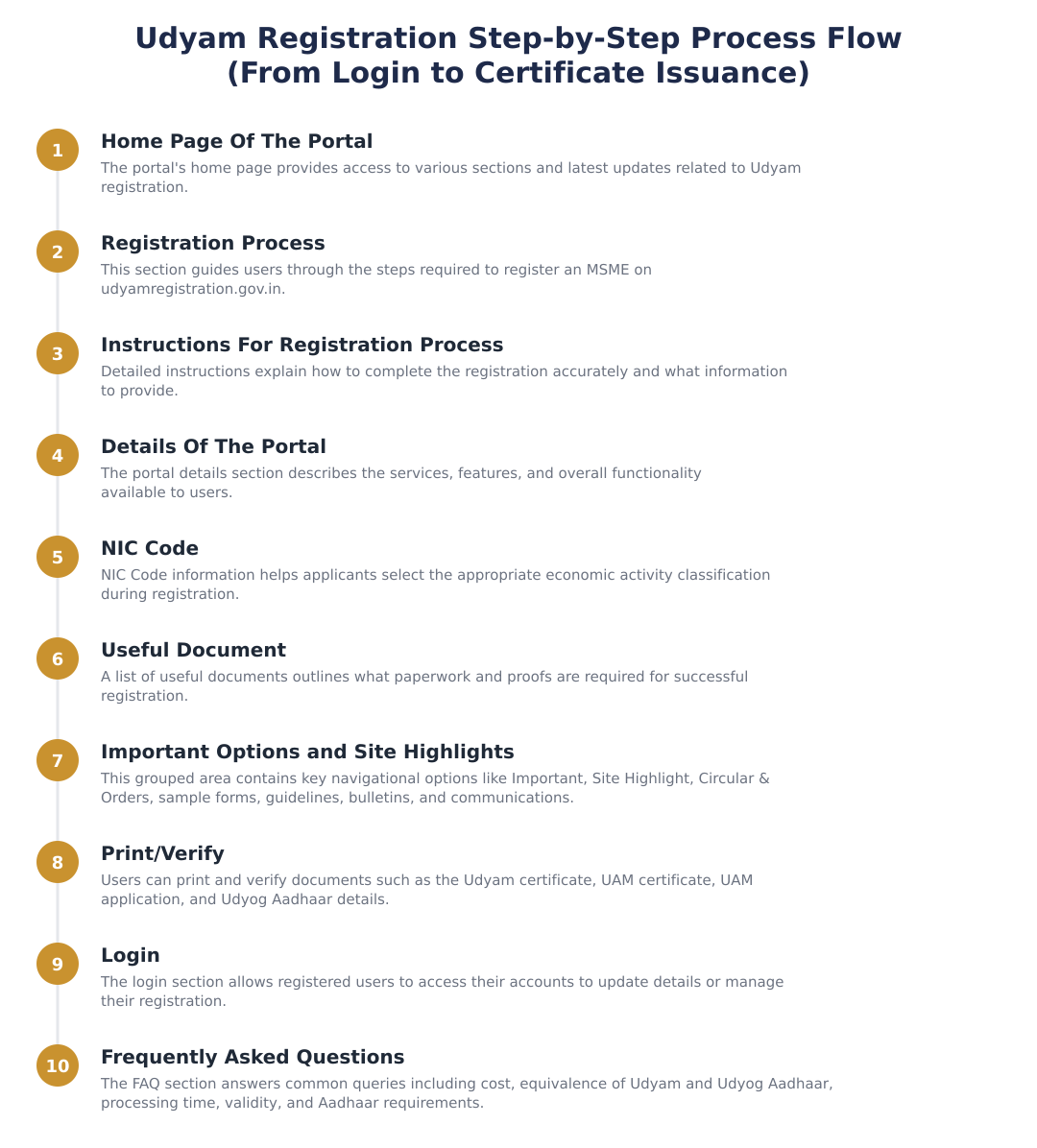
Home Page Of The Portal
The portal’s home page is the starting point for all user journeys, registration, verification, printing, and logging in. On the home page you can usually find quick links to the most commonly used services, announcements, and guidance. Spend a few moments on this page to identify the main links relevant to your needs before proceeding.
From the home page you should be able to access support materials and navigational aids that explain each service in plain language. If you are unsure where to begin, look for sections labelled for new registrations, existing users, or help/FAQ. These cues help you choose the right next step without having to explore every menu.
Registration Process
Registration on a government portal for enterprise recognition typically follows a sequence of identifying yourself, supplying business details, and completing an online submission. Before starting, gather the information and documents the portal requests so you can complete the form in one sitting. This reduces errors and the need for subsequent updates.
During the process you will be asked to confirm the details you provide. Enter information carefully and review it before final submission. Many portals provide confirmation screens or summary pages, use these to check names, addresses, business activities and any other entries that will remain on official records.
Instructions For Registration Process
Read any on-screen instructions or guidance notes thoroughly before filling out forms. Portals often include contextual help or tooltips next to fields; these clarify what each input expects and can prevent common mistakes. If the portal provides sample forms or templates, review them to understand the expected format of information.
If you encounter technical issues while registering, use the portal’s help resources such as an FAQ, contact form, or support number when available. Keep copies or screenshots of any error messages and the filled form pages until your registration is confirmed. This documentation can help support staff resolve issues more quickly.
Details Of The Portal
The portal consolidates registration, verification and document retrieval in one location so that enterprises have a single place to manage their official recognition status. Expect sections for submitting new registrations, checking or printing certificates, and updating details where permitted.
Explore the portal’s information sections to learn about any guidance documents, circulars or sample forms it publishes. These resources help you align your submissions with the portal’s requirements and reduce the chance of rejection or request for clarification.
NIC Code
Industrial activity classification codes (commonly referenced on enterprise portals) are used to categorise a business’s primary activities. If the portal requests an activity code, identify the code that best matches your main line of business before submitting the form.
Choosing the correct code helps in accurate record-keeping and ensures that any datasets or reports derived from the portal reflect your enterprise’s operations correctly. If unsure, consult the portal’s guidance or classification lists to find the closest match.
Useful Document
Most portal processes rely on a set of supporting documents to verify identity and business details. Before you begin, make a checklist of the documents the portal indicates as necessary so you can upload or reference them during the application.
Scan or photograph documents clearly and ensure any uploads meet the portal’s size and format requirements. Keeping electronic versions organised in advance saves time and reduces the risk of upload errors during the registration session.
Print/Verify
After completing registration actions on the portal, you should be able to print or verify registration records from a dedicated section. Use the print/verify features to obtain official copies or to confirm that your details appear correctly in the system.
If the portal offers verification by a reference number, keep that number safe; it is typically the quickest way to retrieve and confirm registration status. Regularly printing or saving a digital copy of important certificates is a good practice for record-keeping.
Login
The portal will have a login area for returning users and administrators. Securely store your login credentials and use any available account recovery options provided on the portal if you forget them.
When accessing the portal from shared devices, sign out at the end of your session and avoid saving passwords in public browsers. Good account hygiene helps prevent unauthorised access to your enterprise information.
Frequently Asked Questions
A portal’s FAQ section addresses common user queries about registration eligibility, process steps, timelines, and document requirements. Consult the FAQ early to clarify doubts before beginning the application.
If you cannot find an answer in the FAQ, use the portal’s contact or support channels. When raising queries, provide clear details about your issue and any error messages so the support team can assist you efficiently.
Udyamregistration.gov.in serves as the official government gateway for MSME (Udyam) registration. Use the portal’s home page, guidance materials, and support features to navigate registration, verification and printing tasks. Preparing documents, choosing correct activity classifications, and following on-screen instructions will make the process smoother. When in doubt, consult the portal’s help resources or contact support for clarification.
Frequently asked questions
Is Udyam registration free or do I have to pay a fee on udyamregistration.gov.in?
Udyam registration on udyamregistration.gov.in is completely free; no fee is charged by the Government for registering an MSME. The official portal provides a free online form where you submit Aadhaar and business details to get Udyam registration; any demand for payment is likely from third‑party agencies and should be avoided. If you are asked to pay, report it to the portal helpdesk or local authorities and always use the official government site to register.
Is Udyam registration the same as Udyog Aadhaar or are they different?
Udyam registration replaced Udyog Aadhaar, they are not separate schemes now; Udyam is the current registration system for MSMEs. Udyog Aadhaar was the earlier registration format and businesses with a Udyog Aadhaar Number (UAN) were migrated or advised to obtain Udyam registration under the new rules. If you previously had a Udyog Aadhaar, you should register on the Udyam portal to get the new Udyam Registration Number (URN) and certificate, which reflect updated criteria and data fields.
How long does it take to obtain Udyam registration after applying on the portal?
If your Aadhaar number is validated and all details are correctly entered, Udyam registration is generated instantly on the portal and you can download the certificate immediately. In cases where Aadhaar validation or supporting document checks are required, processing may take longer, typically a few days until verification is completed. If there are discrepancies or manual verification is triggered by authorities, expect additional time and the portal will show the application status.
What is the validity period of the Udyam/MSME registration certificate?
Udyam registration is valid for the lifetime of the enterprise and does not require renewal under current rules. Once the Udyam Registration Number (URN) and certificate are issued, they remain valid unless the enterprise voluntarily updates or modifies its details or is deregistered. However, enterprises must ensure their details (like turnover or investment) are updated if there are material changes, as benefits and classification depend on current information.
Whose Aadhaar number should be used when registering a business on udyamregistration.gov.in?
The Aadhaar number to be provided depends on the business type: for proprietorships give the proprietor's Aadhaar, for partnership firms give any partner’s Aadhaar, and for companies, LLPs or trusts give the Aadhaar of the authorised signatory. The portal requires Aadhaar authentication of the person submitting the registration, so the Aadhaar used must belong to the responsible individual listed in the application. If the authorised person’s Aadhaar is used, ensure they have the authority to sign and authenticate the business details.
What documents and information do I need to complete Udyam registration online?
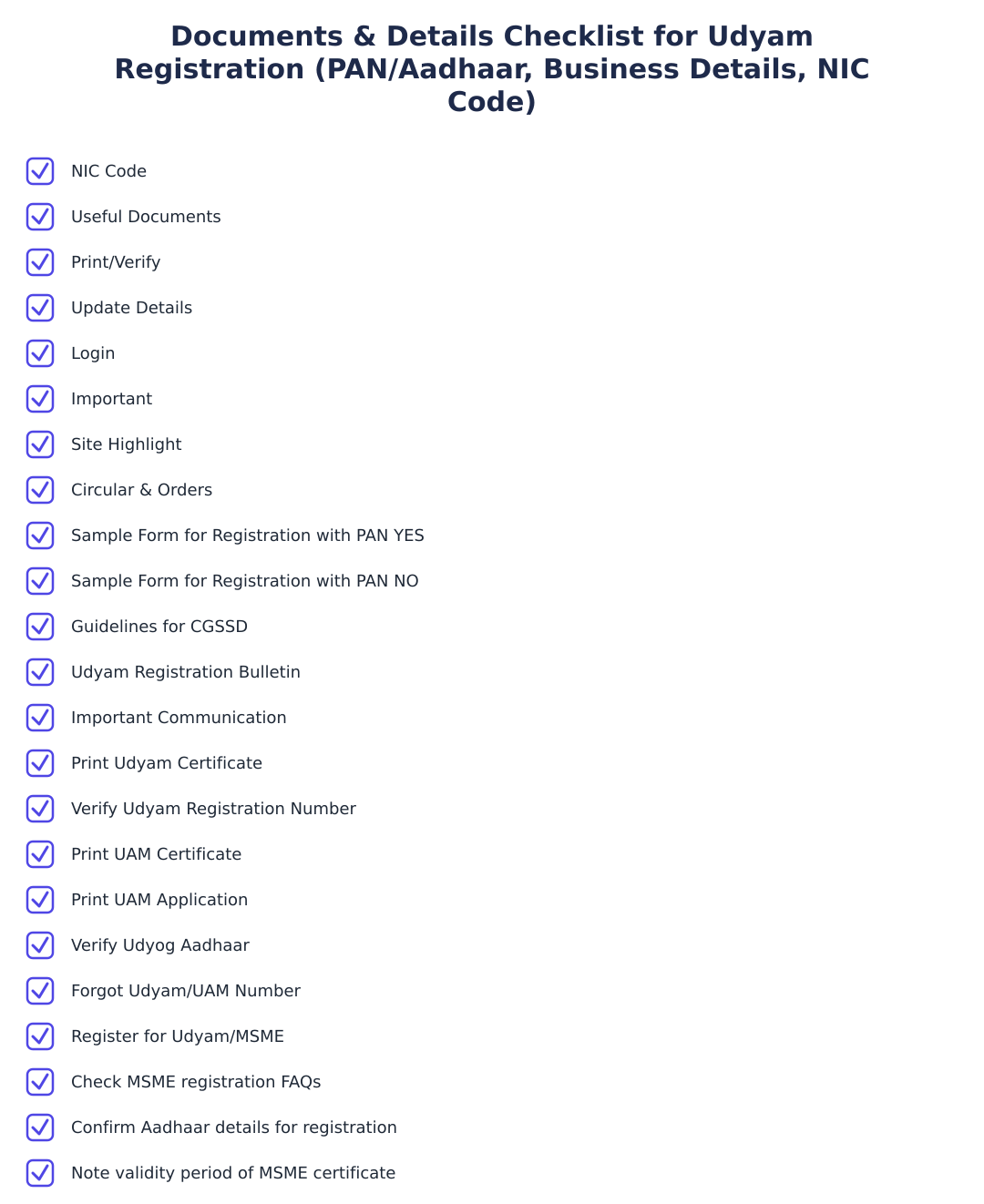
To complete Udyam registration online you need the Aadhaar number of the proprietor/partner/authorised signatory, PAN (if available), bank account details and IFSC, business address, and the NIC code for your primary business activity; GSTIN is optional but can be provided. The portal also provides sample forms for applications with and without PAN and lists useful documents and instructions to help fill the form accurately. Keep digital copies of supporting information ready for accurate entry, because incorrect details can delay or invalidate the registration.
What is NIC code and why is it required during Udyam registration?
NIC code is the National Industrial Classification code that classifies your business activity and is required on the Udyam portal to specify the nature of goods manufactured or services provided. Selecting the correct NIC code helps determine the enterprise’s activity category and is used for statistical and eligibility purposes for schemes and incentives. The portal provides a list or search option for NIC codes and you should choose the code that best matches your principal business activity.
How can I print, verify or recover my Udyam/UAM number from the portal?
On the udyamregistration.gov.in portal you can print the Udyam certificate, verify a Udyam Registration Number (URN), print a previous UAM certificate, and recover/remember forgotten Udyam or UAM numbers using the Print/Verify and Forgot Udyam/UAM options. The site’s Print/Verify section lets you enter your URN or business details to download the certificate or confirm registration authenticity instantly. Use the ‘Forgot Udyam/UAM Number’ option with basic business details or PAN/Aadhaar to retrieve lost registration numbers.
How do I log in to the Udyam portal and update my business details after registration?
You log in to the Udyam portal using the Udyam Registration Number (URN) and the mobile number/Aadhaar details used during registration to access and update business information. The portal provides an Update Details/Login section where authorised users can modify particulars like address, bank details or business activities; any material change should be updated to keep the registration valid. For changes requiring verification, the portal may ask for supporting documents and Aadhaar authentication of the authorised signatory.
Run a service business? See every client's money on one screen.
MoneyGence shows who has paid, who is overdue and by how many days, with GST-ready invoices, bank reconciliation and renewal alerts alongside your MSME work. Free for up to 2 clients, no credit card needed.
Start free with 2 clients See how it works →